دليل المدرب
إزاي بيتبني منهج على Thinkera وبيتدار
الدليل ده بيشرح طريقة المنصة، مش منهج بعينه. أي منهج هنا — برمجة، إنجليزي، إدارة، أي مجال — بيتبني بنفس الطريقة وبيتدار من نفس الورشة، فاللي في الصفحة دي بيسري على أي منهج تشتغل عليه.
المقرر الرسمي هو الأساس، والإضافة بتيجي عليه عند الحاجة.
اللي في الدليل
١ · الطريقة
المبدأ اللي كل شاشة في الورشة مبنية عليه.
المنهج على المنصة بيبدأ من المقرر الرسمي: دروسه، وترتيبه، ومصطلحاته. ده الأساس وما بيتغيّرش — الطالب بيمتحن فيه، ومصطلح مترجم بالمزاج بيكلّفه درجة. وفوق الأساس ده بيتضاف:
دروس المقرر
كل درس في المقرر بيتحوّل لدرس كامل: شرح، وملفات، وتقييمات، وتدريب. الترتيب ترتيب المقرر.
دروس إضافية
لحتة المقرر بيمرّ عليها بسرعة، أو مهارة عملية بيفترضها ومش بيشرحها. بتتحط كدرس مستقل وبتبان للطالب بعلامتها، فالطالب عارف إنها زيادة مش مادة امتحان.
المفصول يفضل مفصول
اللي برّه المقرر ما بيتدمجش جوّه درس أساسي. دمجه بيخلّي حاجة ما امتُحنش فيها حد تبان كأنها مادة امتحان.
٢ · بناء المنهج
من المقرر لمنهج شغّال على المنصة.
قسّم المقرر وحدات
كل وحدة موضوع واحد، وجوّاها دروسها بترتيب المقرر. والوحدة الأولى بتفضل مفتوحة مجاناً بالكامل — دي طريقة المنصة في كل منهج، مش عرض مؤقت.
حط دروس المقرر
درس لكل درس، بنفس الاسم والترتيب. وكل درس بياخد خطواته الأربعة اللي في القسم الجاي.
ضيف الدروس الإضافية
بعد ما تقرا المقرر كله وتعرف فين الفجوات. الدرس الإضافي بيتحط في مكانه من التسلسل وبيبان بعلامته.
اظبط الترتيب والشروط
من صفحة «ترتيب الدروس»: تفتح الدروس بالترتيب ولا كلها مفتوحة، وإيه شرط فتح كل درس. وفيها معاينة بعين الطالب عشان تشوف اللي هو هيشوفه.
والشرط الافتراضي بقى واحد ومعلَن: الدرس بيتحسب خلص لما الطالب يجيب ٧٥٪ فأكتر في «تدريب: مستوى متقدم» بتاعه، والدرس اللي بعده بيتفتح على كده — مش على فتح كل ملف ولا إنهاء كل نشاط. وتقدر تغيّره لأي درس من نفس الصفحة: تختار أنشطة تانية تتحسب، أو ترفع النسبة أو تنزّلها، أو تخلي الدرس مفتوح بلا شرط.
والدرس يتفتح بأربع طرق: بعد الدرس اللي قبله (الافتراضي)، أو بعد دروس معيّنة تختارها، أو بعد وحدة كاملة، أو مفتوح دايماً. و«بعد وحدة كاملة» بيتسجّل بالوحدة نفسها مش بدروسها: لو ضفت درس جديد للوحدة بعدين، الدرس المستني هيستناه هو كمان من غير ما ترجع للصفحة. والوحدات اللي بتظهر لك هي اللي دروسها كلها قبل الدرس اللي بتعدّله.
وفي «إيه اللي يتحسب إن الطالب خلّص الدرس ده» تلات خيارات: كل أنشطة الدرس، أو الأنشطة المختارة تحت بس — ولازم يخلّصها كلها، أو أي نشاط من الأنشطة المختارة تحت. التالت ده اللي تستخدمه لما تسيب للطالب اختيار الطريق: «يتفرّج على الفيديو أو يقرا الملزمة».
وزّع الأنشطة على الخطوات، واحكم المجاني والمدفوع
صفحة «الدروس والوصول» بتعرض أنشطة كل درس في جدول واحد: لكل نشاط خطوته (الشرح · ملفات الدرس · التقييمات · التدريب، أو «تلقائي» اللي بيحطّه في مكانه المتوقّع)، ووصوله مجاني ولا مدفوع. والاتنين بإيدك: تفتح درس كامل كعيّنة، أو تسيب نشاط واحد مفتوح، والتغيير بيبان للطالب على طول. اللي فاضل للأدمن هو سعر المنهج وطرق التسجيل ونشره على الموقع.
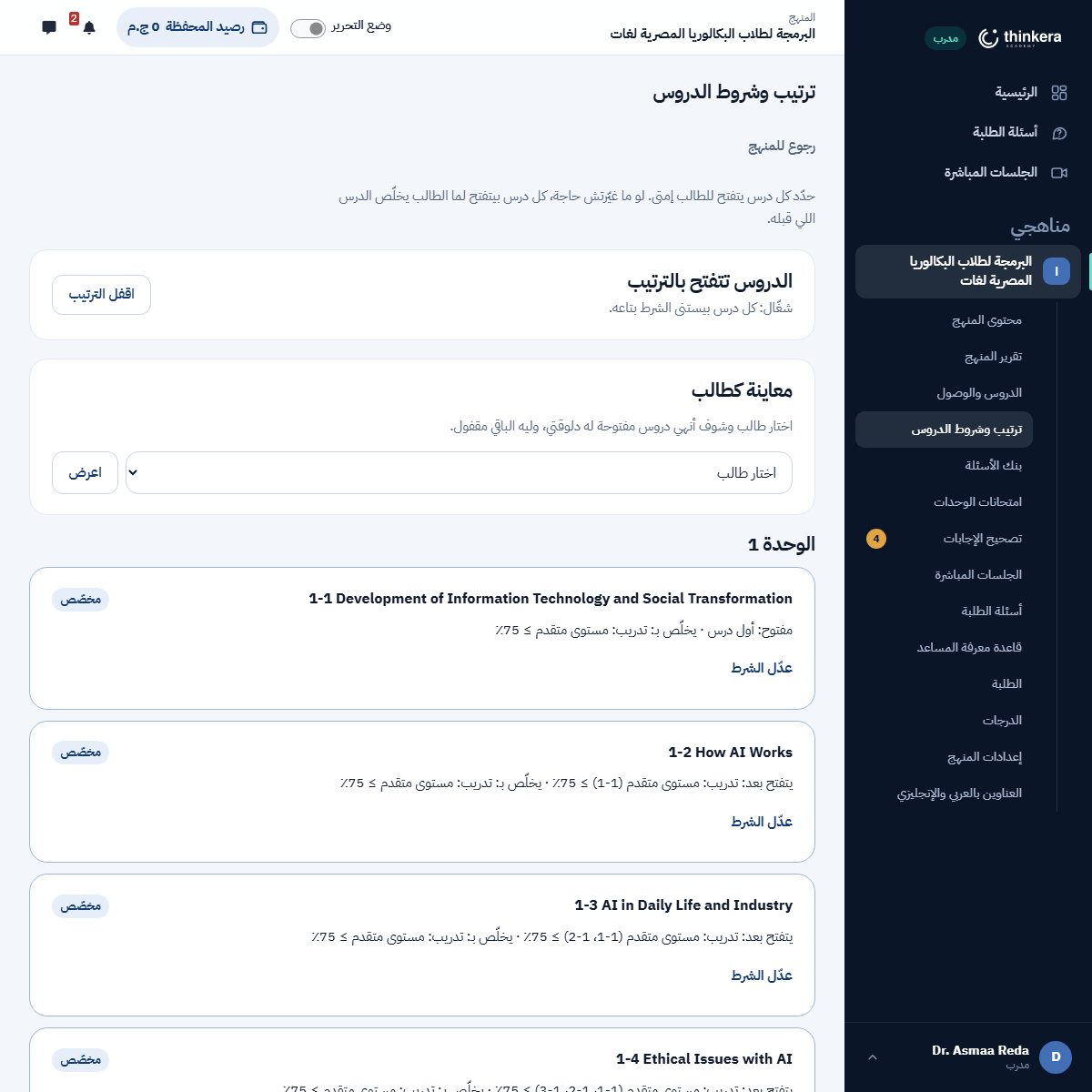
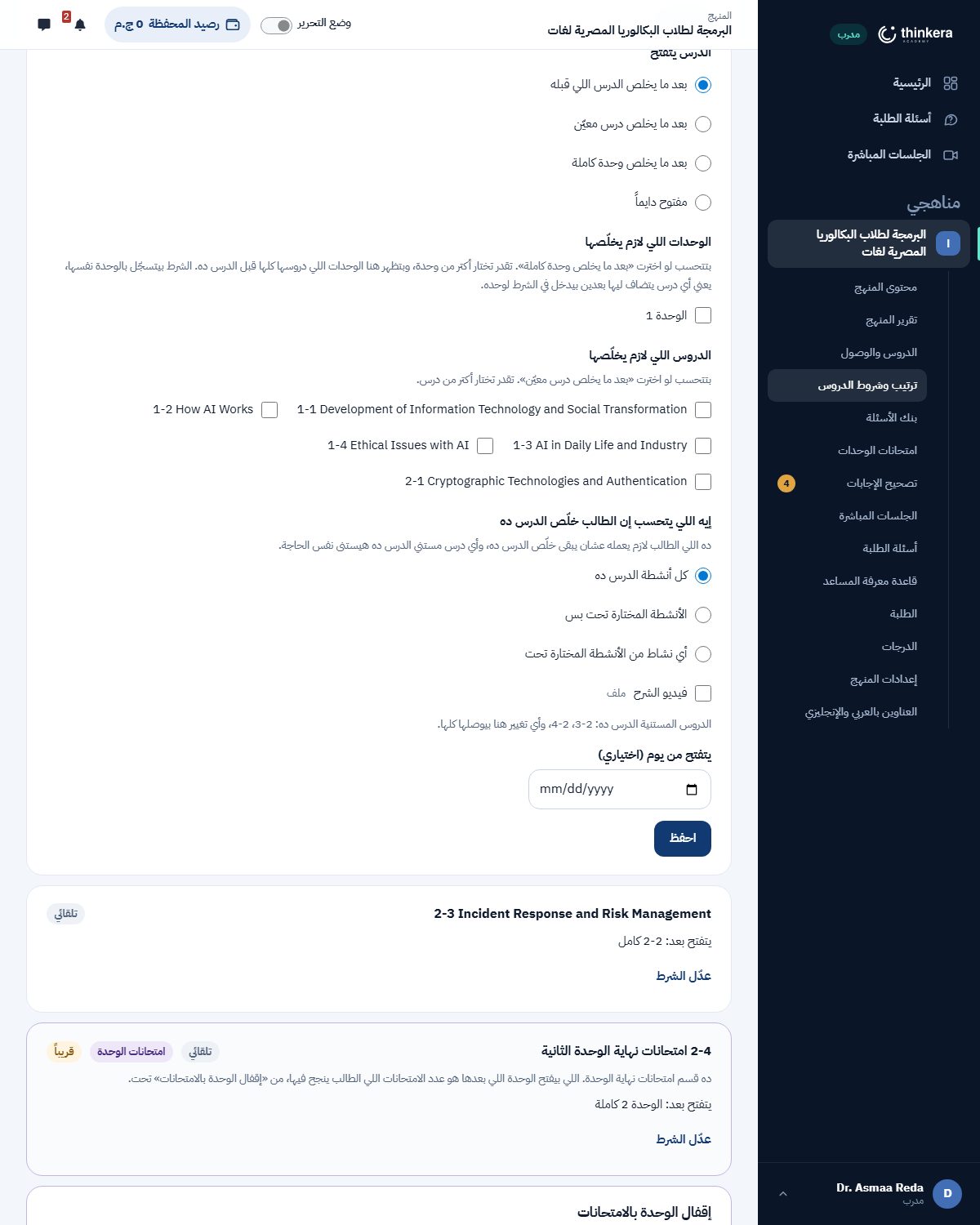
الصفحة دي للمدرب وللأدمن. المدرب بيوصلها من القايمة الجانبية بتاعة المنهج، والأدمن من قايمة المنهج نفسه («ترتيب وشروط الدروس») — والاتنين بنفس الصلاحيات ونفس الشاشة. مفيش مكان تاني بتتظبط منه شروط الانتقال.
٣ · الدرس وخطواته الأربعة
الطالب بيشوف نفس الأربع خطوات في كل درس، وإنت اللي بتحدّد اللي جوّه كل واحدة.
| الخطوة | بتحط فيها إيه |
|---|---|
| الشرح | فيديو الدرس. تقدر تحط نسختين: تفاعلية بتقف وتسأل، وعادية بتتفرج عليها على طول. |
| ملفات الدرس | الملزمة، وشيت الأسئلة، وإجابات الشيت، وأي ملف تاني. بتتعرض جوّه الصفحة وبتتنزّل. |
| التقييمات | الفيديو اللي بيشرح للطالب إزاي يستخدم الشيت والإجابات: يحلّ الأول ويصحّح بعدين. |
| التدريب | تبويبين: الاختبارات اللي بتتصحّح وتديه درجة، وتدريب تفاعلي أنشطة من غير درجة. |
اللي بيحرّك الخطوات: كل نشاط بتحطه في الدرس بيتحط في خطوة من الأربعة، والطالب بيلاقيه هناك. النشاط المخفي مش بيبان له أصلاً.
٤ · بنك الأسئلة
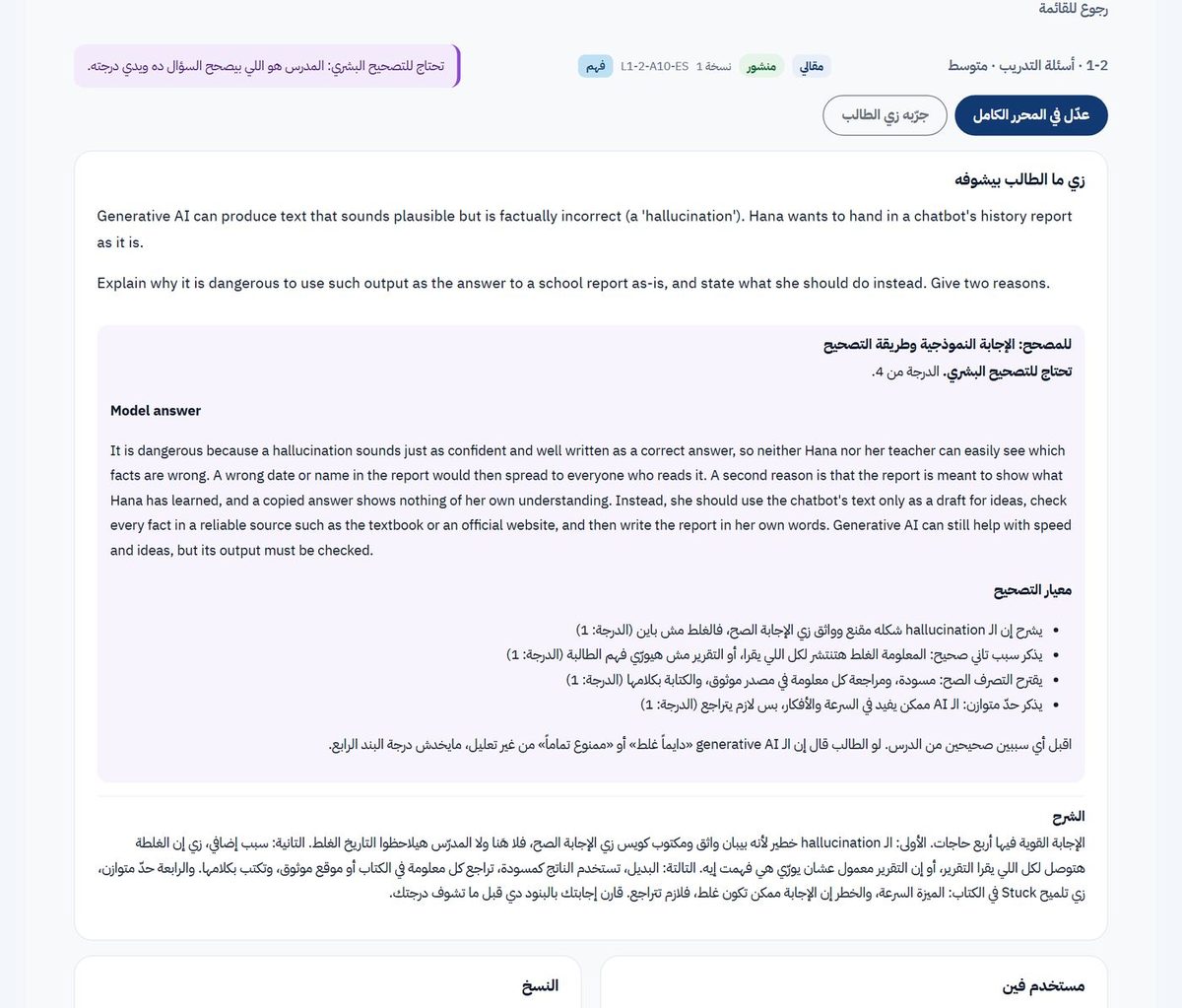
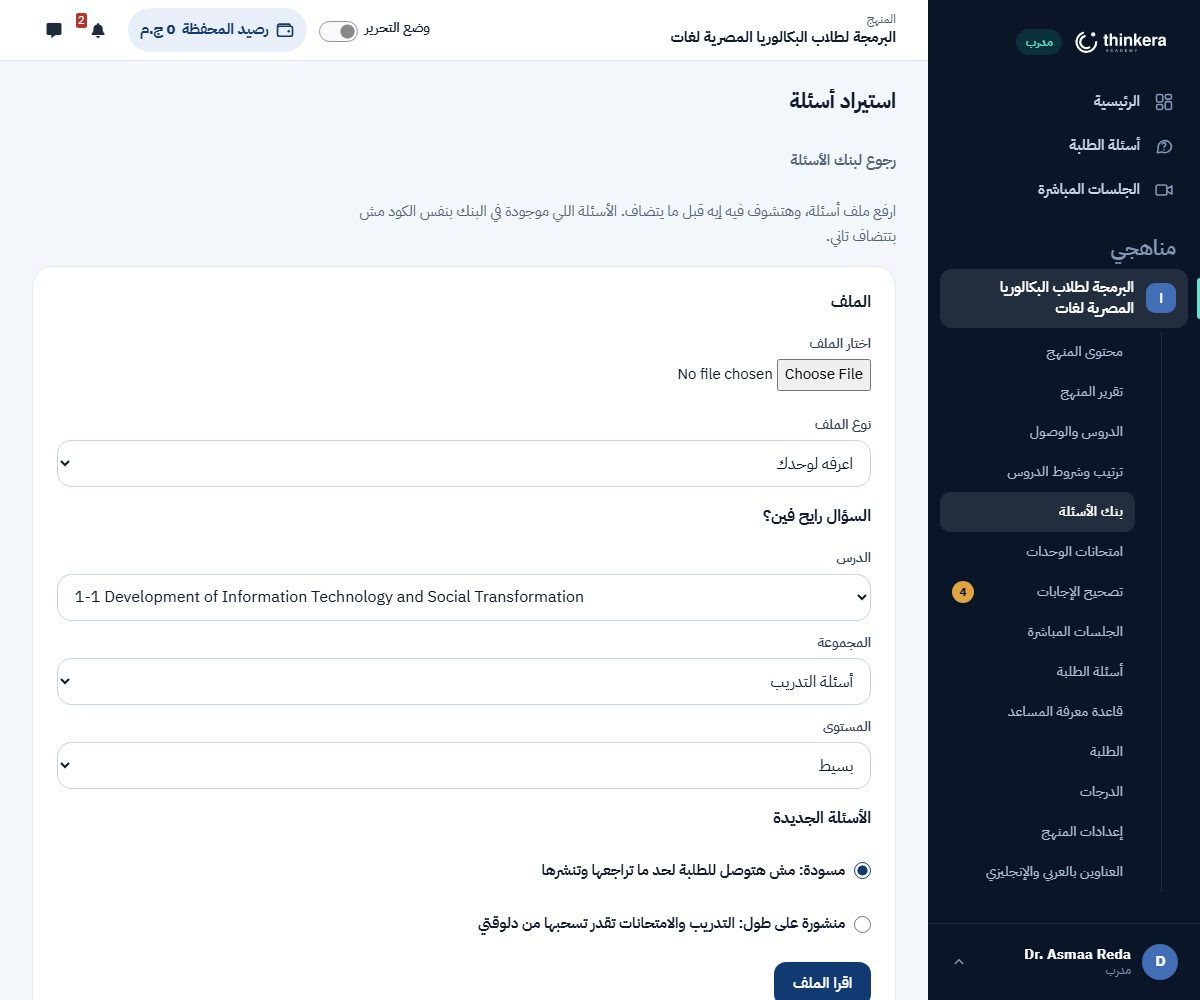
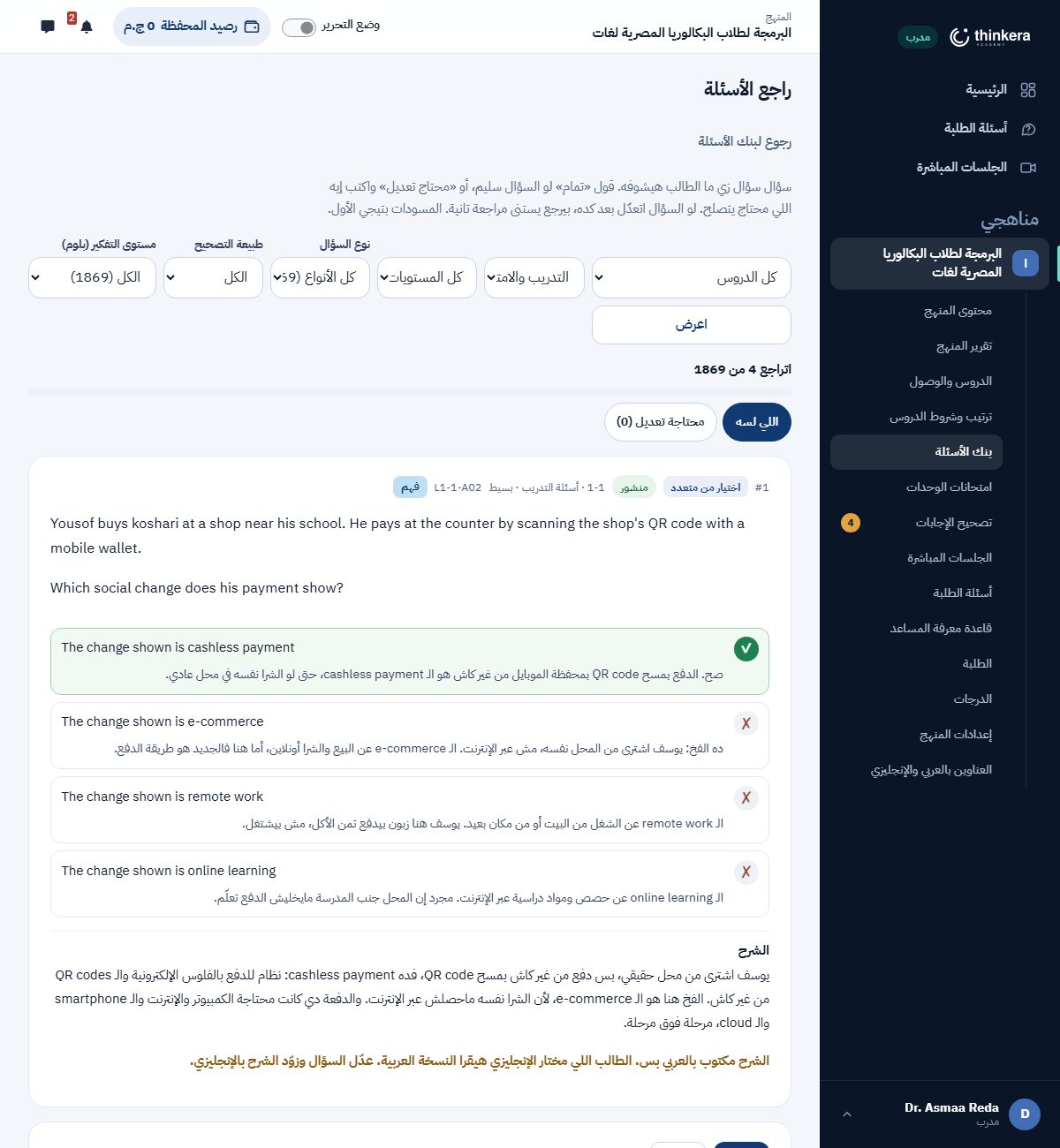
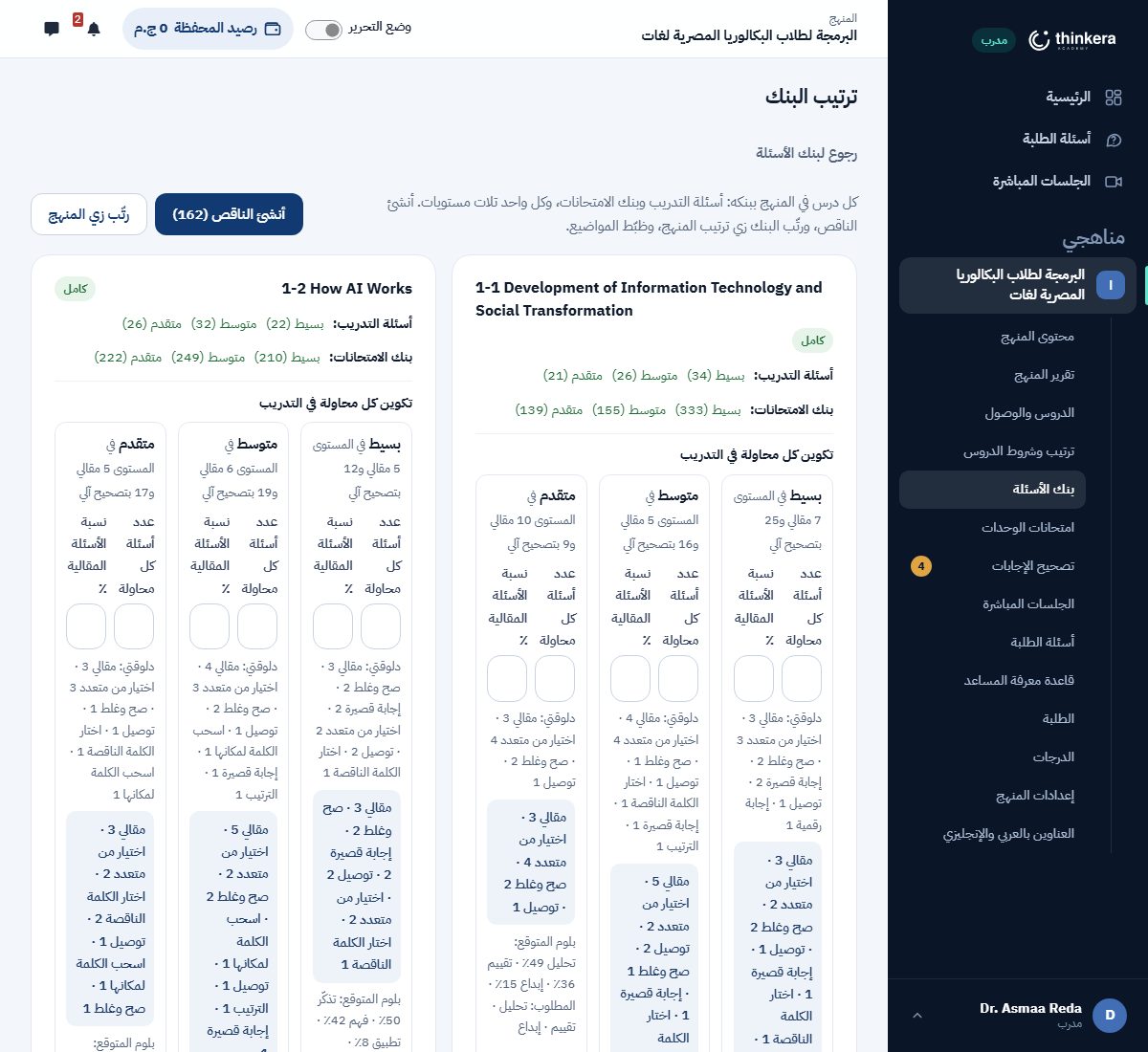
كل أسئلة المنهج في مكان واحد، مقسّمة بالدرس والمستوى.
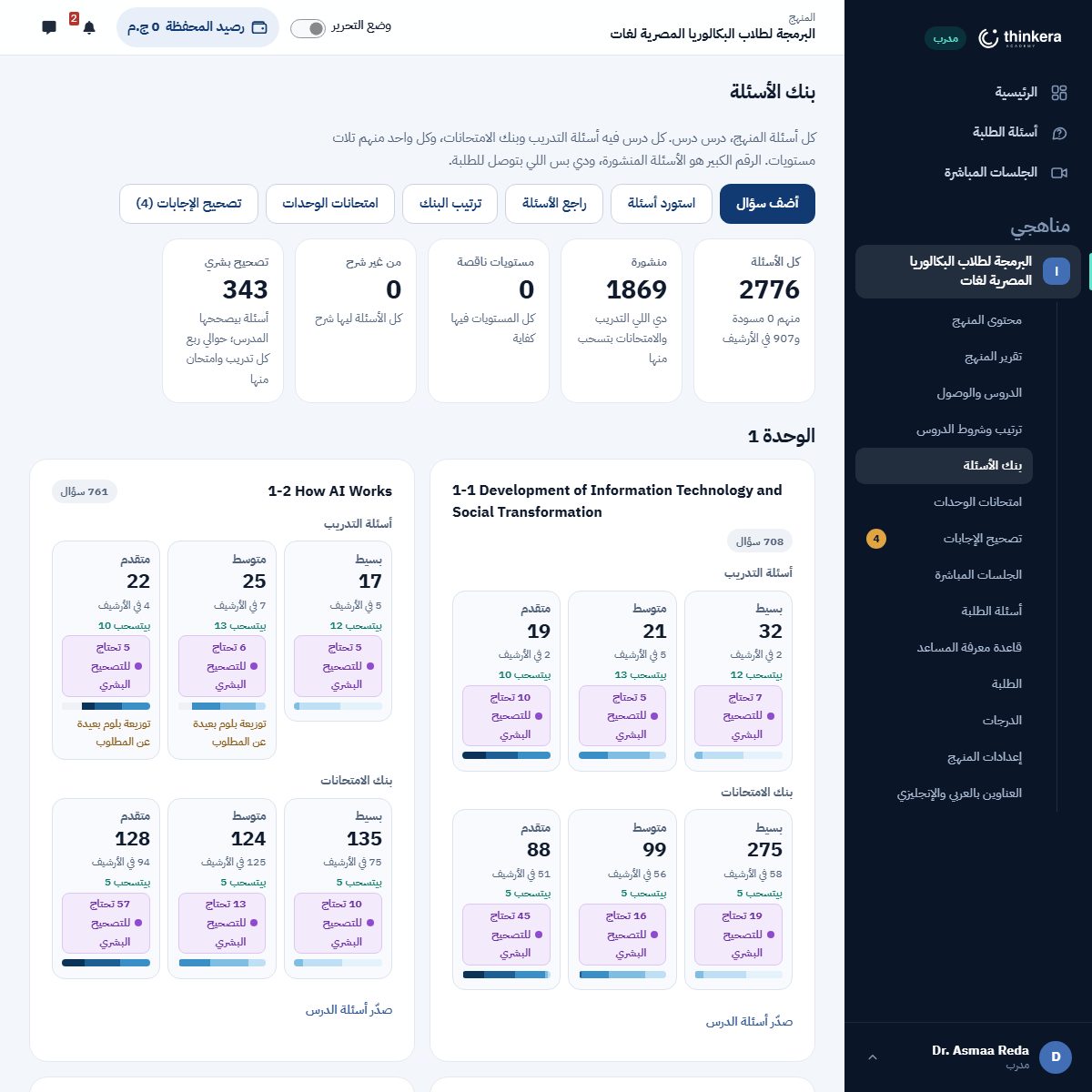
البنك هو مصدر كل تدريب وكل امتحان. الأسئلة بتتقسّم بالدرس وبالمستوى، وكل سؤال بيتسجّل عليه نوعه ومستوى التفكير المطلوب — فالتدريب مش بيطلع كله «افتكر».
٥ · الامتحانات
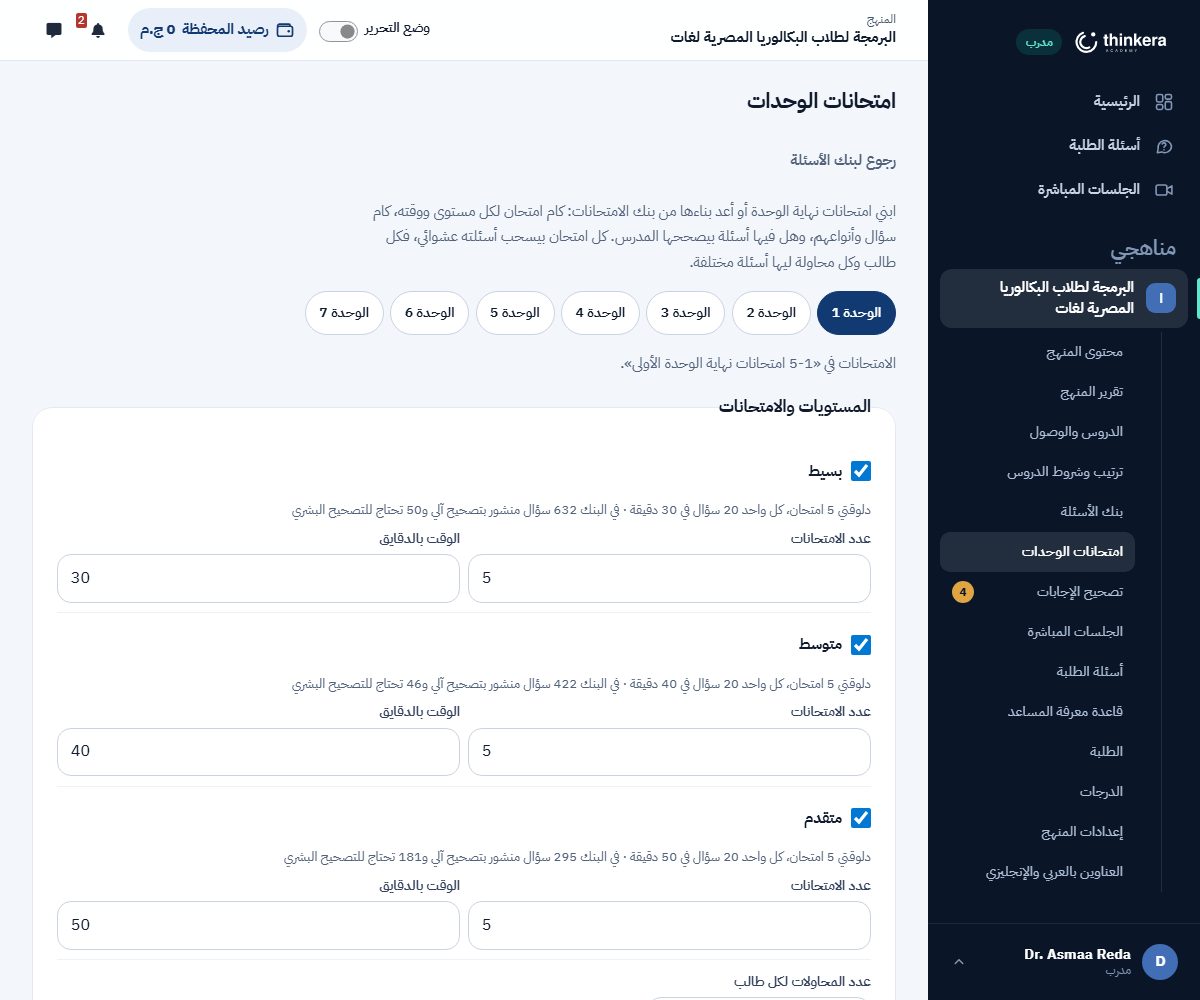
امتحان في آخر كل وحدة، بمستويات.
امتحان الوحدة بيتكوّن من بنك الامتحانات بنفس منطق التدريب: عدد أسئلة، ووقت، وعدد محاولات، وتوزيع على مستويات التفكير. وتقدر تستبعد الأسئلة اللي محتاجة تصحيح بشري لو عايز النتيجة تطلع فوراً.
٦ · التصحيح والمراجعة
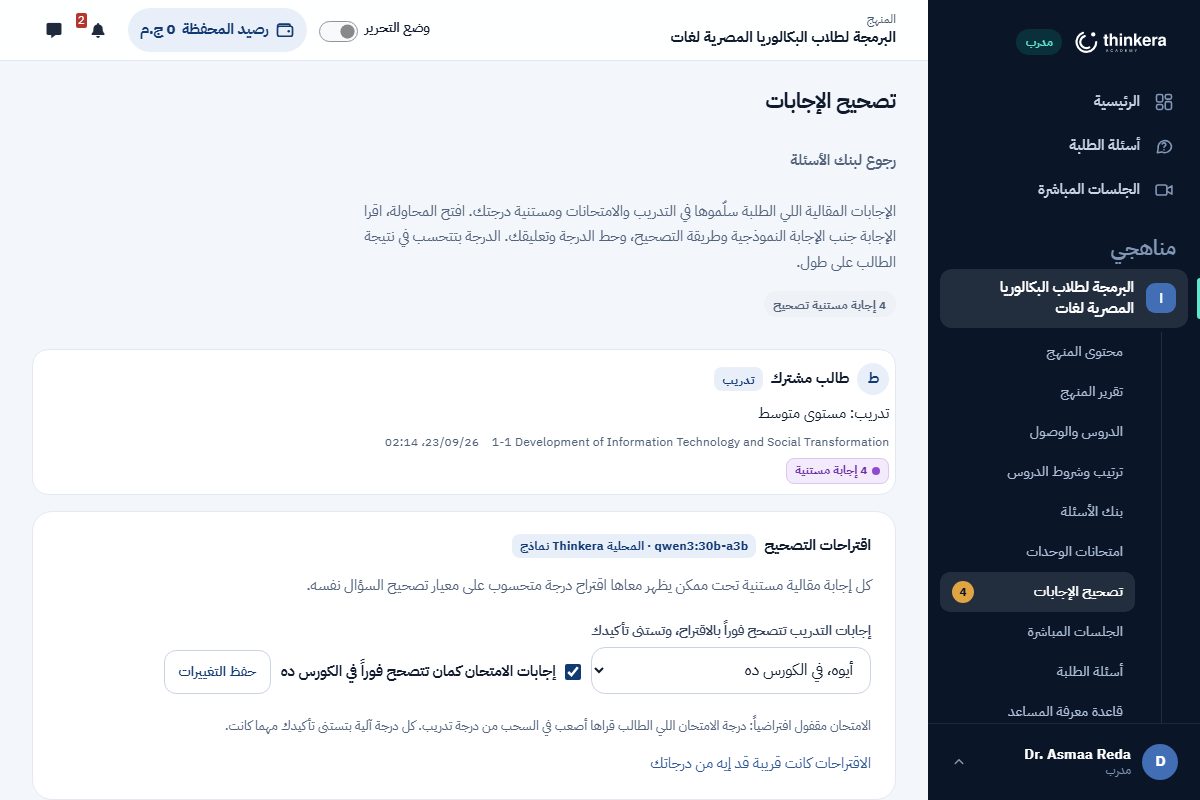
الإجابة المقالية بتتصحّح آلياً، وإنت اللي بتعتمد.
التصحيح الآلي
الإجابة بتتقاس على الإجابة النموذجية ومعيار التصحيح اللي إنت كتبتهم في البنك. مفيش تقدير من فراغ: المعيار هو المرجع.
الدرجة بتستنى اعتمادك
بتظهر لك في قائمة المراجعة كدرجة مقترحة مع تعليلها. الطالب ما بيشوفهاش قبل ما تعتمدها.
لو غيّرتها، الطالب بيعرف ليه
تعديل الدرجة بيروح للطالب إشعار بالسبب. ده اللي بيخلّي الطالب يثق في الرقم بدل ما يتخانق عليه.
٧ · المساعد الذكي
بيجاوب الطالب من دروس منهجك، وإنت اللي بتحدّد بيقرا منين.
المساعد بيدوّر على تلات مراحل: الدرس اللي الطالب فيه، وبعدين باقي دروس المنهج، وبعدين بيسأل الطالب لو يحب إجابة من برّه المنهج. المرحلتين الأولانيتين بيقروا من قاعدة معرفة المنهج — وهي اللي إنت بتتحكم فيها.
صفحة قاعدة المعرفة
من ورشة المدرب، بند «قاعدة معرفة المساعد» جوّه المنهج. فيها:
- رفع ملفات بصيغة md أو PDF، وكل ملف بيتوسم بالدرس اللي بيخصّه — فالمساعد يعرف يرجّعه في مكانه.
- تشغيل وإطفاء كل مصدر لوحده من غير ما تمسحه. مصدر مطفّي المساعد ما بيقراش منه.
- حذف اللي ما بقاش صالح، ومراجعة إيه اللي اتستورد وإمتى.
القاعدة اللي وراه: المساعد بيقول مصدر إجابته من الدرس، ولو ما لقاش بيقولها صريح بدل ما يألّف. والخروج برّه المنهج بيحصل بموافقة الطالب نفسه، والإجابة دي بتيجي عليها علامة إنها من برّه. يعني الطالب دايماً عارف هو بيقرا كلام مين.
الذكاء الاصطناعي في المنصة: مهمتين، مش «ذكاء» عام
المنصة ما بتشغّلش موديل عشان تقول إنها بتشغّل موديل. في مهمتين بالظبط، كل واحدة ليها موديلها المختار من إعدادات المنصة:
مساعد المنهج
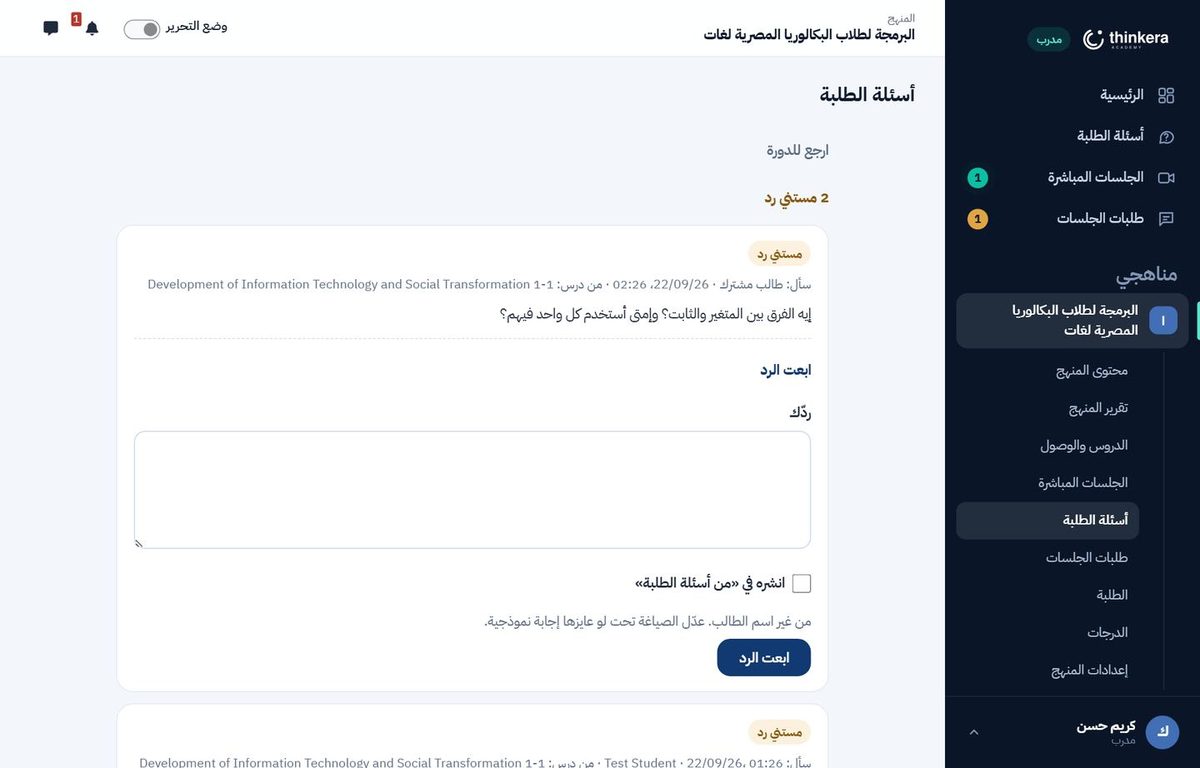
بيجاوب من قاعدة معرفة المنهج اللي فوق دي، بمراحله التلاتة، وبيقول مصدره. ده اللي بيشيل عنك الأسئلة اللي إجابتها مكتوبة في الدرس أصلاً — فاللي بيوصلك في «أسئلة الطلبة» بيبقى اللي فعلاً محتاجك.
اقتراح درجة
على صفحة التصحيح، زرار «اقتراح درجة» بيقارن إجابة الطالب بالإجابة النموذجية ومعيار التصحيح، ويرجّع درجة مقترحة ومعاها تعليلها. الشغل بيكمّل على السيرفر حتى لو قفلت الصفحة، وبتلاقيه جاهز لما ترجع.
الاعتماد بإيدك
الاقتراح مش درجة. الطالب ما بيشوفش حاجة قبل ما تعتمد، وتقدر تغيّر الرقم وتكتب سبب — والسبب بيوصله.
وإزاي تعرف تثق في الاقتراح؟
في صفحة اسمها «دقة اقتراحات الذكاء الاصطناعي»: بتقارن اقتراحات كل موديل بالدرجات اللي المدربين حطّوها بنفسهم، على الإجابات اللي فيها الاتنين. والإجابات اللي الاقتراح صحّحها لوحده مستبعَدة من الحساب — لأنها هتتفق مع نفسها. يعني قرار «أثق فيه لحد كام» مبني على رقم، مش على انطباع.
واللي بيتسجّل
- سجل استخدام فيه سطر لكل طلب: الموديل، وحجم الطلب، والمدة، ونجح ولا لأ.
- مش بيتكتب فيه ولا كلمة من اللي الطالب كتبه، ولا أي مفتاح.
- الموديل شغّال على سيرفر الأكاديمية، فلا إجابات الطلبة ولا محتوى منهجك بيخرج لخدمة برّه.
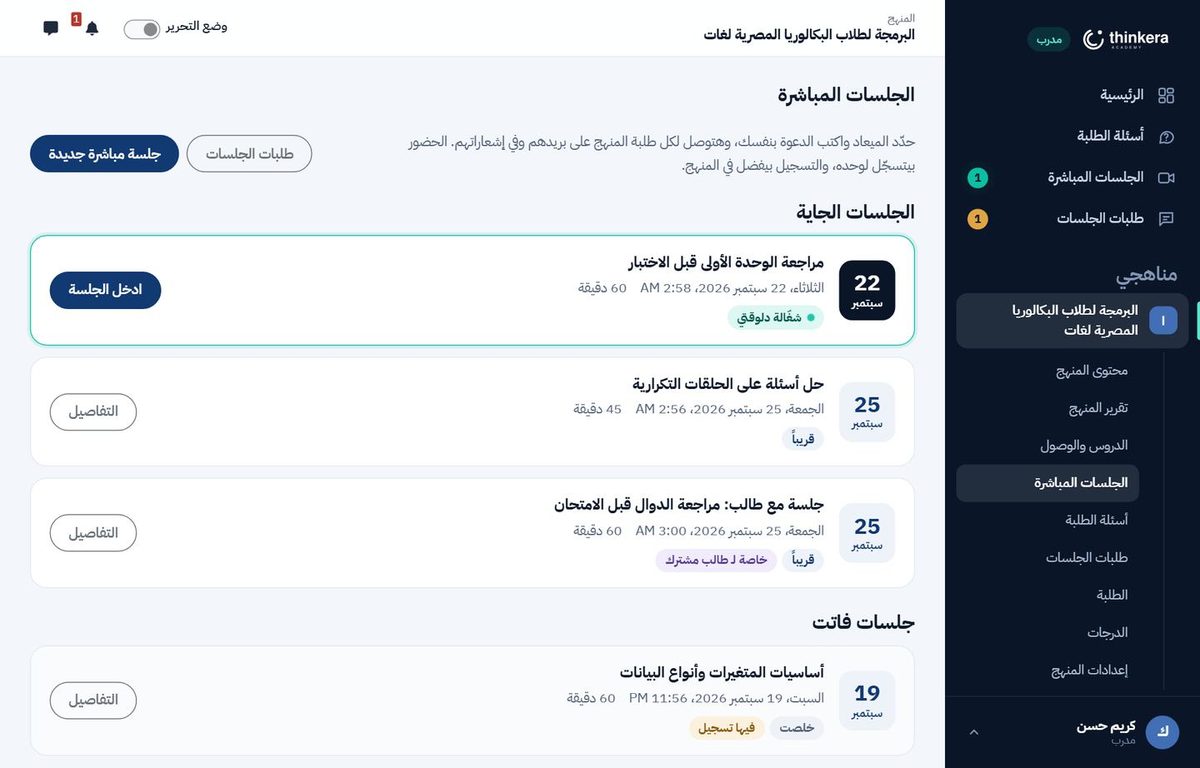
٨ · أسئلة الطلبة والجلسات
اللي المساعد ما بيغنيش عنه.
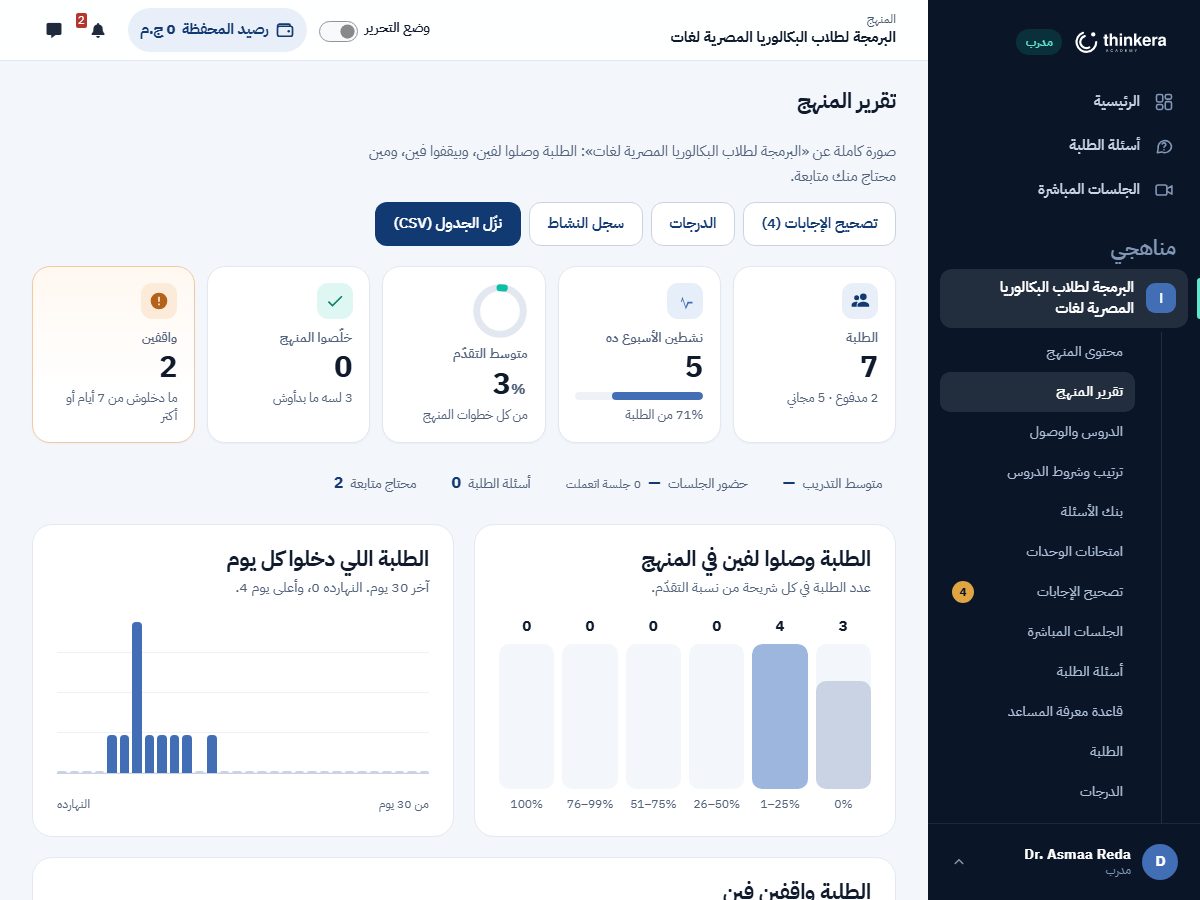
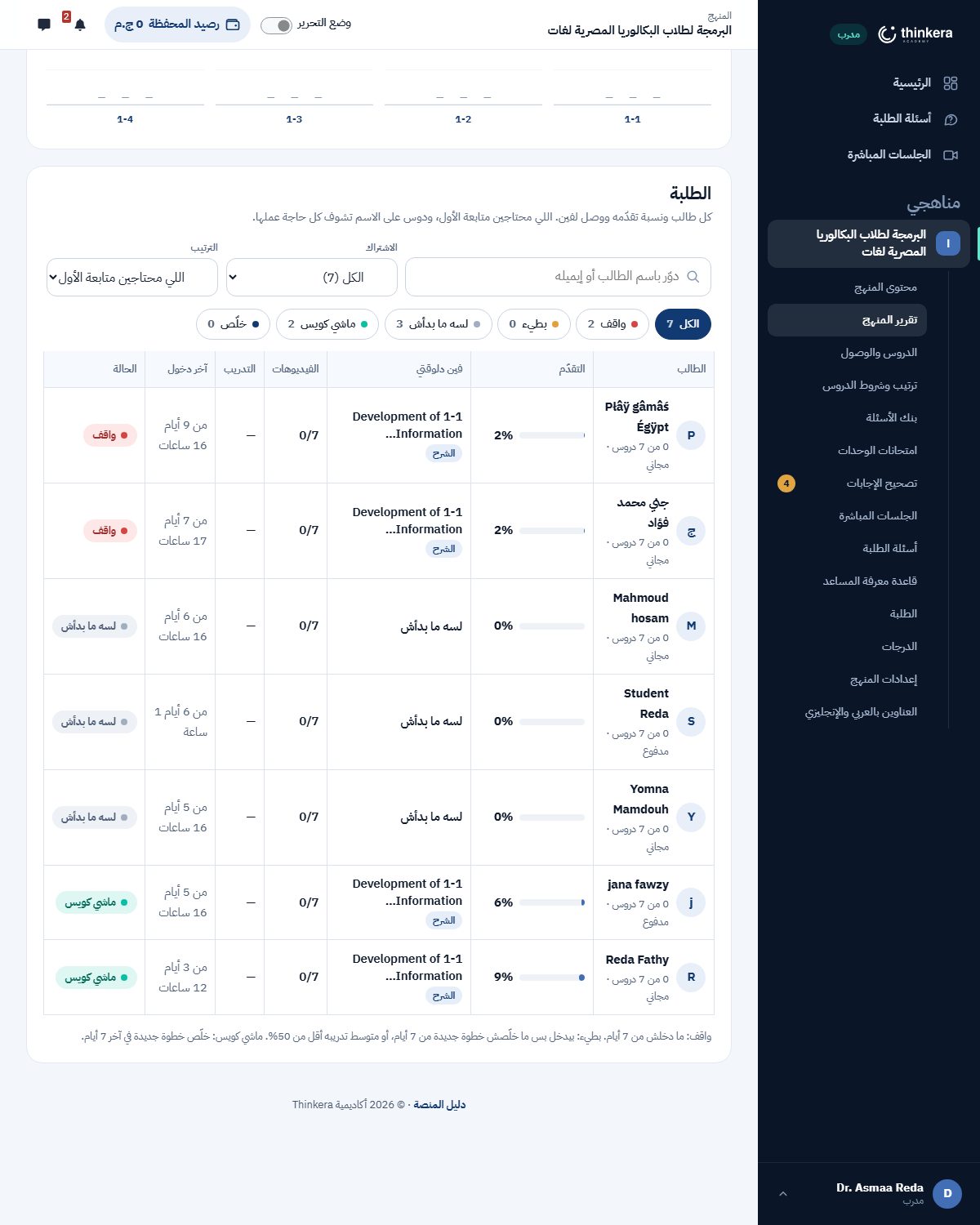
٩ · المتابعة
مين شغّال، ومين واقف، وفين وقف.
١٠ · إعدادات المنهج
آخر حاجة، ومرة واحدة غالباً.
- إعدادات المنهج: اللي بيظهر للطالب واللي بيتقفل، ولوحة الصدارة والشارات.
- الترجمة: نصوص المنهج باللغة التانية، عشان الطالب يبدّل من تفضيلاته.
- الأسعار والاشتراكات: تمن المنهج وتمن الجلسة، والوحدة الأولى بتفضل مفتوحة مجاناً.
The instructor guide
How a course is built and run on Thinkera
This guide explains the platform's method, not one particular course. Every course here — programming, English, management, any field — is built the same way and run from the same workspace, so what is on this page applies to whichever course you work on.
The official syllabus is the base; additions come on top of it where they are needed.
What is in this guide
1 · The method
The principle every screen in the workspace is built on.
A course on the platform starts from the official syllabus: its lessons, its order, its terms. That is the base and it does not change — the student is examined on it, and a term translated to taste costs them a mark. On top of that base, two things are added:
The syllabus lessons
Each lesson becomes a full lesson: an explanation, files, assessments and practice. The order is the syllabus's order.
Extra lessons
For a part the syllabus passes over quickly, or a practical skill it assumes and never teaches. It goes in as its own lesson and is marked as such, so the student knows it is an addition and not examinable material.
What is separate stays separate
Material from outside the syllabus is never merged into a syllabus lesson. Merging it makes examinable something nobody was ever examined on.
2 · Building the course
From a syllabus to a course that runs.
Divide the syllabus into units
One subject per unit, with its lessons in the syllabus's order. Unit 1 stays open and free in full — that is the platform's way in every course, not a temporary offer.
Put in the syllabus lessons
One lesson for each, with the same name and the same order. Each takes the four steps in the next section.
Add the extra lessons
After reading the whole syllabus and knowing where the gaps are. An extra lesson goes into its place in the sequence and carries its own mark.
Set the order and the conditions
From the lesson order page: whether lessons open in sequence or all at once, and what opens each one. It has a student preview, so you see what they will see.
The default condition is now one stated thing: a lesson counts as finished when the student scores 75% or more on its “Practice: Advanced level”, and the next lesson opens on that — not on opening every file or completing every activity. You can change it per lesson on the same page: choose other activities to count, raise or lower the percentage, or leave a lesson open with no condition at all.
A lesson opens in one of four ways: after the lesson before it (the default), after specific lessons you choose, after a whole unit, or always open. “After a whole unit” is kept as the unit itself, not as the lessons it held when you saved it: add a lesson to that unit later and the waiting lesson waits for it too, without your going back to the page. The units offered are those whose lessons all come before the lesson you are editing.
And “what counts as finishing this lesson” has three choices: every activity in the lesson, only the activities chosen below — all of them, or any one of the activities chosen below. The third is the one to use when the student may choose their road: watch the video or read the booklet.
Place the activities on the steps, and decide free or paid
The “Lessons and access” page shows a lesson's activities in one table: for each one its step (The explanation · Lesson files · Assessments · Practice, or “automatic”, which puts it where it is expected), and its access, free or paid. Both are yours: open a whole lesson as a sample, or leave a single activity open; the student sees the change at once. What stays with the administrator is the course price, the enrolment methods and publishing it on the site.
This page belongs to the trainer and to the administrator alike. The trainer reaches it from the course's own sidebar, the administrator from the course menu (“Lesson order and conditions”) — the same screen, the same powers. There is nowhere else the progression conditions are set.
3 · A lesson's four steps
The student sees the same four steps in every lesson; you decide what goes in each one.
| Step | What goes in it |
|---|---|
| The explanation | The lesson video. You can put in two versions: an interactive one that stops and asks, and a plain one that runs straight through. |
| Lesson files | The booklet, the question sheet, its answers, and anything else. They are shown inside the page and can be downloaded. |
| Assessments | The video that shows the student how to use the sheet and its answers: answer first, mark second. |
| Practice | Two tabs: quizzes, which are marked, and interactive practice, activities with no mark. |
What drives the steps: every activity you put in a lesson sits in one of the four steps, and that is where the student finds it. A hidden activity is not shown to them at all.
4 · The question bank
All of a course's questions in one place, split by lesson and level.
The bank is where every piece of practice and every exam comes from. Questions are split by lesson and by level, and each one records its type and the thinking it asks for — so practice does not come out as one long recall test.
5 · Exams
An exam at the end of every unit, at more than one level.
A unit exam is composed from the exam bank on the same logic as practice: a question count, a time, a number of attempts, and a spread across thinking levels. You can leave out the questions that need human marking when you want the result to be immediate.
6 · Marking and review
Written answers are marked automatically; you are the one who confirms.
The automatic mark
The answer is measured against the model answer and the mark scheme you wrote in the bank. Nothing is judged out of thin air: the scheme is the reference.
The mark waits for you
It reaches you in the review queue as a proposed mark with its reasoning. The student does not see it before you confirm it.
If you change it, they are told why
A changed mark reaches the student as a notification with the reason. That is what makes a student trust the number instead of arguing with it.
7 · The AI assistant
It answers students from your course's lessons, and you decide what it may read.
The assistant searches in three steps: the lesson the student is in, then the rest of the course, then it asks the student whether they want an answer from outside the course. The first two read from the course's knowledge base — which is yours to control.
The knowledge base page
In the workspace, under the course: «The assistant's knowledge base». It holds:
- Uploads in md or PDF, each tagged with the lesson it belongs to, so the assistant can return it in the right place.
- A switch per source, without deleting it. A source that is off is not read.
- Deletion of what no longer holds, and a view of what was imported and when.
The rule behind it: the assistant names the part of the lesson an answer came from, and when it finds nothing it says so rather than inventing. Going outside the course happens only when the student says yes, and that answer is labelled as being from outside. The student always knows whose words they are reading.
AI on the platform: two jobs, not a general «intelligence»
The platform does not run a model in order to be able to say it runs one. There are exactly two jobs, each with its own model chosen in the platform's settings:
The course assistant
It answers from the knowledge base above, in its three steps, and names its source. That takes off your hands the questions whose answer is already written in the lesson — so what reaches «student questions» is what actually needs you.
A suggested mark
On the marking page, «suggest a mark» compares the student's answer with the model answer and the mark scheme and returns a proposed mark with its reasoning. The work carries on server-side even if you close the page, and is waiting when you come back.
Confirming is yours
A suggestion is not a mark. The student sees nothing until you confirm, and you can change the number and write a reason — which reaches them.
And how do you know whether to trust a suggestion?
There is a page called «how accurate the AI's suggestions are»: it compares each model's suggestions with the marks instructors gave themselves, over the answers that have both. Answers the suggestion marked on its own are left out of the comparison — they would only agree with themselves. So «how far do I trust this» rests on a number rather than an impression.
What is recorded
- A usage log with one line per request: the model, how big the request was, how long it took, and whether it worked.
- What is never written there: a single word a student wrote, or any key.
- The model runs on the academy's own server, so neither students' answers nor your course's content leaves for an outside service.
8 · Questions and sessions
What the assistant does not replace.
9 · Following the class
Who is working, who has stopped, and where they stopped.
10 · Course settings
The last part, and usually done once.
- Course settings: what the student sees and what is locked, the leaderboard and the badges.
- Translation: the course's text in the other language, for students who switch in their preferences.
- Prices and enrolment: the price of the course and of a session, with Unit 1 staying open and free.